Firmware Directory
iOS 10.x
Latest Version
iOS 10.3.3
Supported Models
13 Devices
Release Date
Jul 18, 2017
Build ID
14G60
Choose an iPhone
13
Compatible Models
Select a device to view available iOS 10.x IPSW restore firmwares
iOS
13 models iOS
iOSiPhone9,4
iPhone 7 Plus (GSM)
Get IPSW
iPhone9,2
iPhone 7 Plus (CDMA)
Get IPSW
iPhone8,4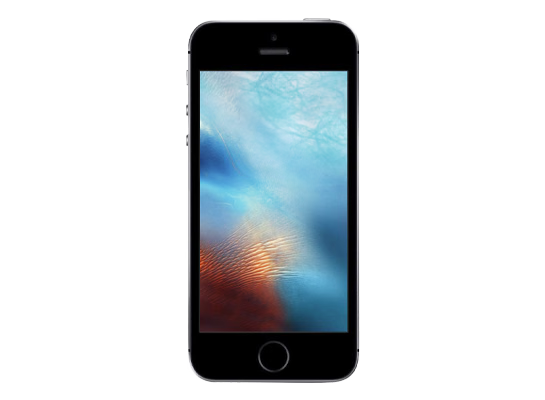
iPhone SE (1st generation)
Get IPSW
iPhone8,2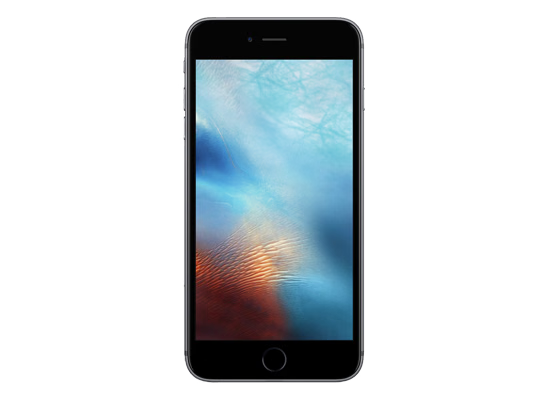
iPhone 6s Plus
Get IPSW
iPhone8,1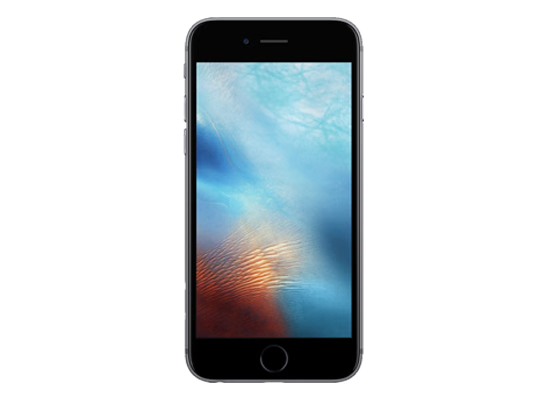
iPhone 6s
Get IPSW
iPhone7,1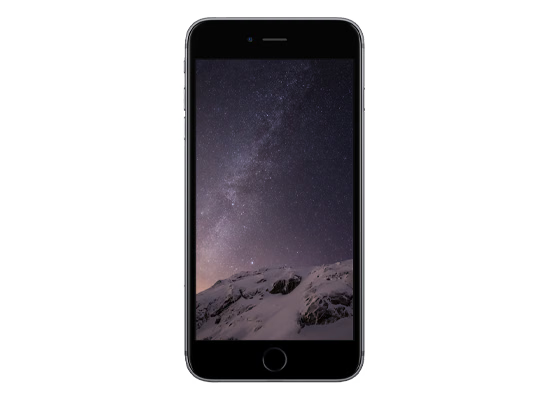
iPhone 6 Plus
Get IPSW
iPhone7,2
iPhone 6
Get IPSW
iPhone6,1
iPhone 5s (GSM)
Get IPSW
iPhone6,2
iPhone 5s (CDMA)
Get IPSW
iPhone5,3
iPhone 5c (GSM)
Get IPSW
iPhone5,4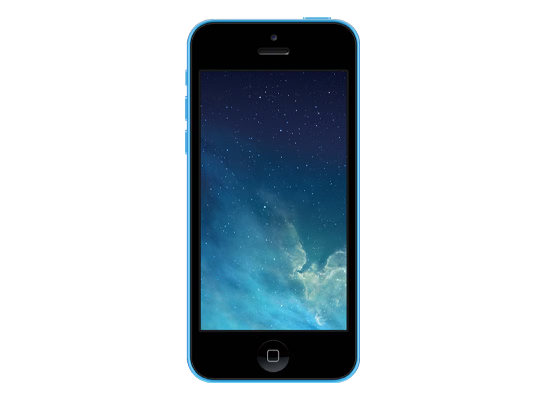
iPhone 5c (CDMA)
Get IPSW
iPhone5,1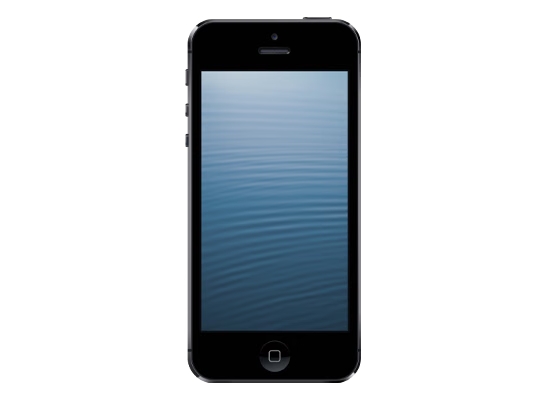
iPhone 5 (GSM)
Get IPSW
iPhone5,2
iPhone 5 (CDMA)
Get IPSW
Restore Guide
How to install iOS 10 IPSW files
Connect your device via USB cable, open Finder (macOS) or Apple Devices / iTunes (Windows), hold Option (Mac) or Shift (Windows), and select the downloaded IPSW file to restore or update.
Mac
Option + Restore
Windows
Shift + Restore
Advertisement
Complete Guide to iOS 10 Firmware Files
Welcome to the dedicated download archive for iOS 10. This page lists every compatible device that supports the iOS 10 release cycle, allowing you to easily find the correct IPSW firmware file for your specific hardware model.
Whether you are dealing with a bricked device, wanting to downgrade to a stable build from a buggy newer release, or setting up a clean installation for security testing, our directory links directly to Apple's Content Delivery Network (CDN) to ensure you always receive 100% genuine and cryptographically signed files.
Why Download iOS 10 IPSW Files?
While most users update their devices Over-The-Air (OTA) directly through the Settings app, OTA updates only download the incremental changes between your current system and the new version. Over time, these delta updates can leave behind cached data, corrupted system files, or persistent battery drain bugs.
By downloading the full iOS 10 IPSW file, you bypass the OTA process entirely. Flashing an IPSW via Finder or iTunes completely erases the operating system partition and writes every single system file from scratch. This "clean install" method is universally recommended by Apple technicians for resolving deep-rooted software corruption, boot loops, or unresponsive touch screens.
Navigating the iOS 10 Lifecycle
The lifecycle of iOS 10 includes multiple phases, starting with early Developer Betas, transitioning to Public Betas, and culminating in stable, public point releases (e.g., 10.0, 10.1, 10.2).
If you have installed a later beta version that is causing app crashes or severe battery drain, you can use the IPSW files listed on this page to downgrade your device back to the last stable 10.x release. However, this is only possible if Apple is still cryptographically "signing" the target firmware. Once Apple stops signing a specific point release (usually a few weeks after a new update), iTunes will block the downgrade with an Error 3194.
How to Find Your Device
Apple compiles unique iOS 10 IPSW files for every specific hardware model. For example, a firmware file compiled for a Pro model will not successfully flash onto a standard model, even if they were released in the same year.
To ensure you download the correct file, select your exact device model from the categories above. If you are unsure which hardware identifier matches your device, you can usually find the physical Model Number (e.g., A2890) printed on the back of the device, inside the charging port, or under Settings > General > About.